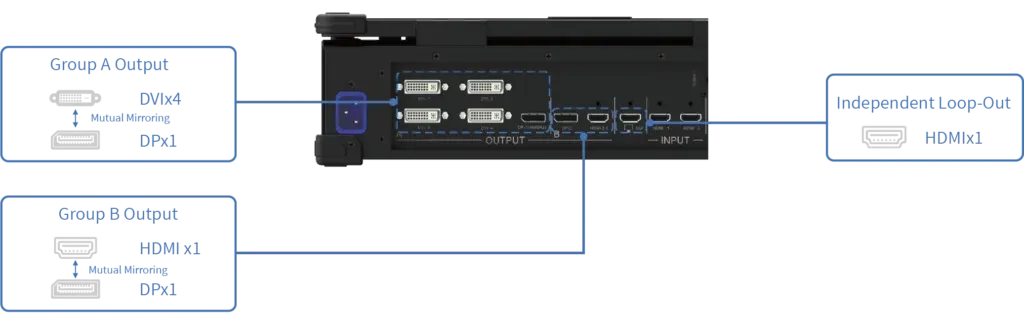
A timeline is most useful when it represents the show that will actually run, not merely a row of clips prepared in advance. It can define cues, overlapping layers, transitions, live sources, and actions associated with specific screen regions.
A timeline video editor becomes an executable production plan when its tracks correspond to the LED canvas and its saved state can be previewed, revised, and restored. Fast editing then depends on controlled changes rather than on improvising directly on the active output.
Build Tracks Around Show Functions
Tracks should express roles that an operator can recognize under time pressure. A timeline video editor may separate background media, live capture, titles, overlays, audio, presentation cues, and screen-specific content.
Clear names and logical grouping expose dependencies: a lower-third may require a camera feed, while a transition may need two scenes to overlap for a defined duration. The timebase must match the production frame rate, and cue boundaries should reflect real stage events. Markers can identify rehearsal notes, operator actions, or safe edit points.
When the timeline mirrors the production language, a change request can be located without searching through unrelated layers. Asset duration and handle length deserve attention when cues may be extended during rehearsal. A clip that ends exactly at its planned out point leaves no room for a delayed speaker, a repeated entrance, or a longer transition.
Where the show permits flexibility, the project can include hold loops, alternate endings, or protected still frames. These elements give the operator a defined response instead of forcing an improvised seek or an untested file replacement on the active system.
Map Content to the Physical Canvas
LED walls often use custom dimensions, irregular sections, or several surfaces inside one production. A timeline video editor should connect each layer to exact canvas coordinates and output regions. Pixel-to-pixel mapping preserves detail, while projection blending and correction templates address installations where images overlap or require geometric adjustment.
The Kommander platform from Kystar combines a timeline-oriented workflow with custom-canvas mapping, multiple Picture-in-Picture layers, projection blending, scene transitions, and preview of the final layout. Preview matters because a technically valid cue can still cover the wrong region or obscure another layer. The operator can inspect composition before the scene reaches the audience.
Isolate On-Site Changes from the Approved Show
Late revisions are safer when the timeline video editor can replace one asset or adjust one cue without disturbing the rest of the project. The operator should duplicate the approved scene or project, apply the change, verify its duration and mapping, and preserve a route back to the last known state.
Asset naming and version control are practical safeguards even when the software also provides project backup. A controlled edit can be stored as a new version rather than overwriting the rehearsed project. Naming the changed cue, recording the operator and time, and keeping a rollback copy make a late adjustment traceable.
The production team can then compare the revised output with the approved state before promoting it to the program canvas. A checksum comparison can also confirm that the rollback copy remains intact. T1 Portable supports effect compositing, HDR conversion, projection-blending templates, web-page playback, multimedia convergence, and synchronized PPT or PDF page turning.
Online streaming and NDI capture can enter the same workflow. Each new source should be tested for availability and fallback behavior, because a network-dependent layer can fail differently from a local file. A fast revision also needs an approval boundary.
The person requesting a change may confirm content, while the playback operator verifies technical properties and the show caller approves the cue position. Recording those decisions in the project notes prevents a later version from being mistaken for the approved one. If time is too short for full rehearsal, the safer response may be a prepared fallback scene rather than an unverified complex edit.
Connect Cues to Rehearsal and Operator Feedback
The timeline video editor should make the result observable during rehearsal. Playback logging records what ran, while teleprompter functions and tablet cloud control can support production roles away from the main console. Multi-user projection adjustment, radar interaction, and scheduled tasks extend the system beyond a single operator pressing play.
These functions need clear authority. One user may adjust geometry while another controls cues; simultaneous changes without ownership can create an uncertain state. The project should define who may edit, who may put a scene on air, and which preview confirms that the revised cue is ready.
Preserve Output Logic When Reordering Scenes
Moving a cue in a timeline video editor changes more than chronology if the scene depends on output splits, live inputs, or a preceding transition. Kystar FP4 and FPSync support preset scenes, arbitrary output splitting and recombination for irregular screens, broad media-format playback, network capture, layer overlay, transparency, rotation, subtitles, and VJ effects.
The operator should verify these dependencies after a scene is moved or duplicated. A reliable edit workflow saves the current approved project, changes one bounded item, previews it against the real canvas, and records the new version before deployment.
The final rehearsal includes the transition into and out of the edited scene, not only the scene in isolation. The editing workflow makes on-site changes faster when it keeps timing, layers, geometry, and recovery visible together; speed without a recoverable approved state merely moves uncertainty closer to show time.
